
Download PDF
The actions described in the first section of this Guide can only be performed by the following roles:
Instructions
When a new user requests to register for STOCKHOLM, the Administrator of the Geographical Area (Admin GA) from the same organisation will receive a notification.
The registration request will be sent via email and/or SMS, like the one below.

The Admin GA needs to approve the request to finalise the registration process.
How to approve a registration request
1. Open the Manage Data section of the menu.
2. Select Users.

3. Click on the drop-down menu Filter by role.
4. Select the option “To Process”.

This will filter out all users who have been already approved, leaving only the requests that need to be processed.
5. Select the user you want to approve by clicking on the blue pencil icon on the related card. A card with the user details will open.

6. Verify the information provided by the registrant: name, job title and mobile number.
7. If the information is correct, select the Role you want to give to the user (see Roles User Guide).

Admin GA: Administrator of a Geographical Area
Assign the user to the Agency and Geographical Area for which they are responsible by choosing from the related drop-down menu.
You can assign more than one Geographical Area to a user.
Facility Manager: Responsible for one or more facilities in a Geographical Area
Assign the user to the Agency and Storage Facility for which they are responsible by choosing from the related drop-down menu. You can assign more than one Storage Facility to a user.
You can also assign multiple roles of Admin GA and Facility Manager to the same user if required. Click on “Add role” after you created the first one, as many times as needed.
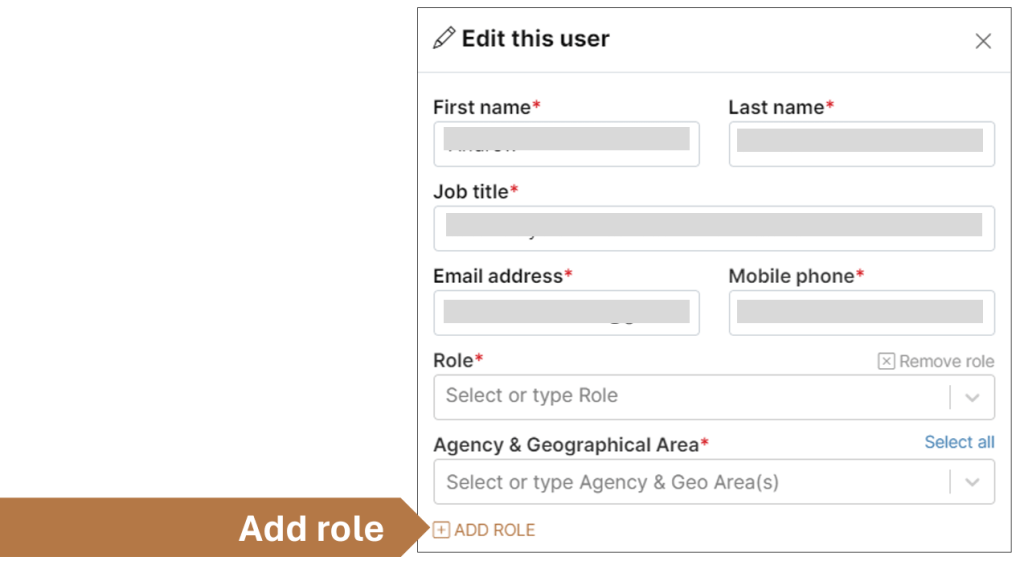
8. If any of the registrant’s information is incorrect, missing or unclear, use their email address to request further clarifications outside the STOCKHOLM platform.
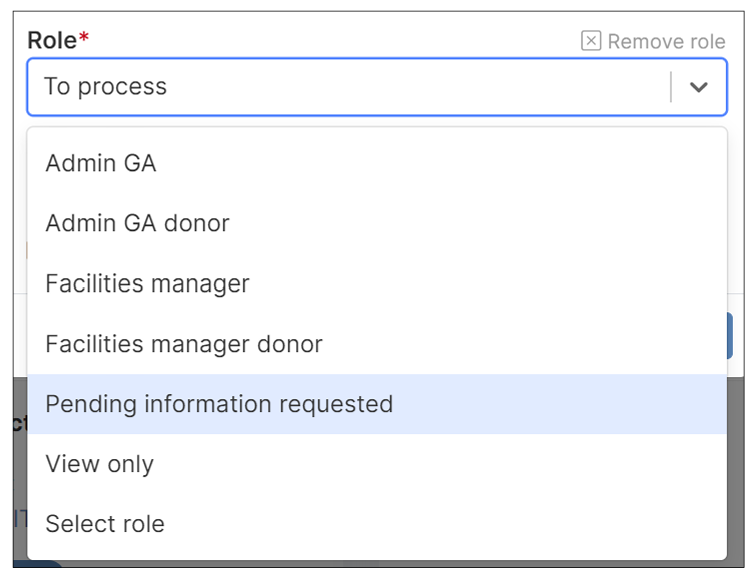
In that case, update the status of this registration request by clicking Role and change from “To process” to “Pending information requested” until the required information is received.
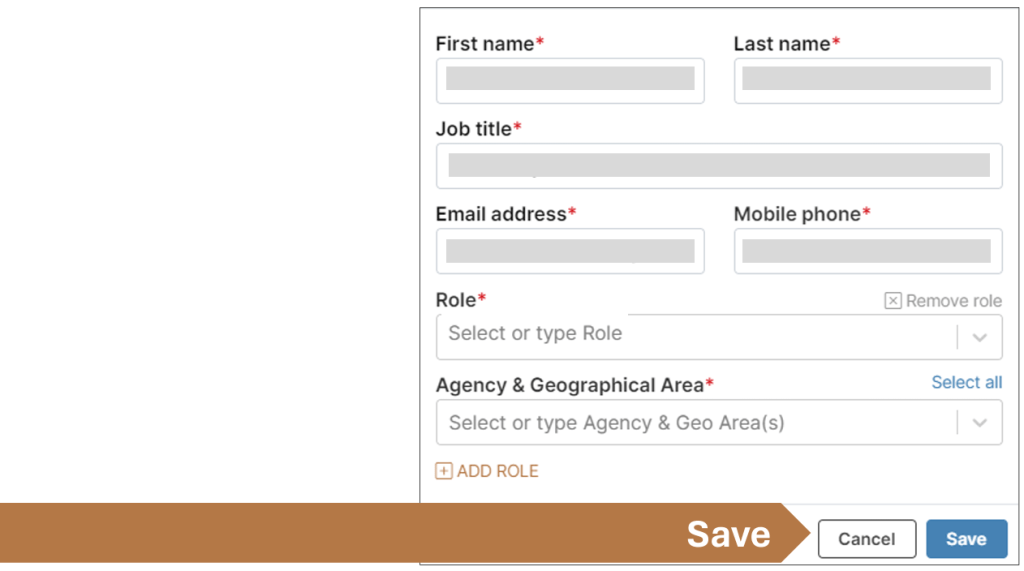
9. Press Save once information is correct and complete.
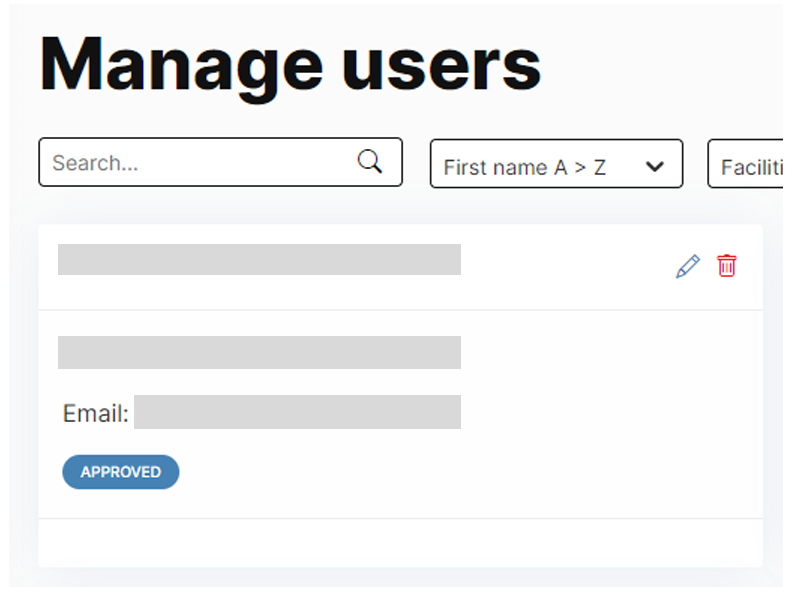
The registration request is now processed. The status of the card will change from “PENDING SINCE [DATE]” to “APPROVED”.
The user whose request has been approved will receive confirmation via email and SMS.