
Download PDF
The actions described in this Guide can only be performed if you have already created an Item and allocated it to a Facility.
Instructions
Item quantities in STOCKHOLM can be updated as frequently as desired.
There are two ways to update the quantity of Items already registered on STOCKHOLM:
- Individually, as described in this Guide; or
- In bulk, by following the Updating Item Quantities in Bulk User Guide.
How to upgrade Item Quantities
Through the manage facilities page
1 . Open the Manage data menu.
2. Select Facilities.

The Manage facilities page will open, displaying facilities that your organisation has already added on STOCKHOLM.
3. Locate the Facility that has the Items you want to update. You can also type into the search bar to look for the Facility.

4. Click the blue pencil icon to open the Facility.
Items allocated to this Facility by your organisation are then displayed.
5. Again, locate or search for the Item that you wish to update.
In the example below, we search for ‘Blanket’.
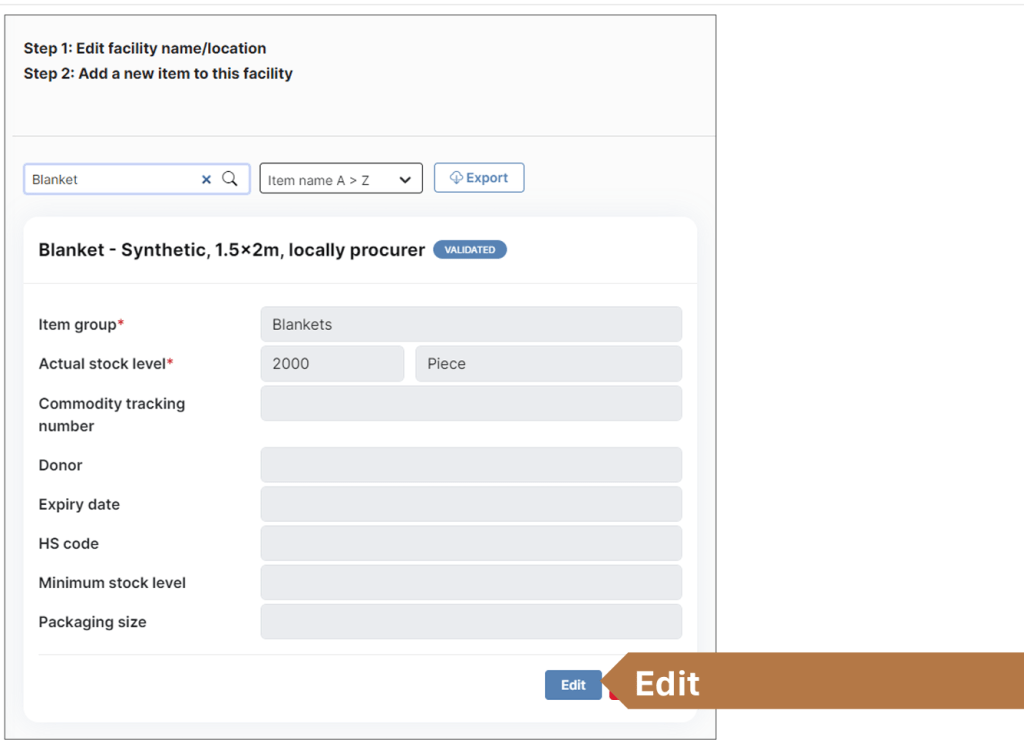
6. Select the Edit button. The fields will become editable.

7. Edit the number indicated in the Actual stock level field. Save
8. Edit any other fields as required. Any field marked with a red asterisk (*) is mandatory.
9. Select Save. Your item is now updated in one Facility.
If the item is allocated to several facilities, repeat the above steps for every Facility where the item needs to be updated.
Alternative way to update item quantities
It is also possible to update Item quantities using the Manage item list section.
See pages 1 and 2 of the Allocating Items to a Facility User Guide for help to access the Item list menu.